Date: 2025-09-26
Tags: ‘Docker’, ‘React’, ‘Multi-stage builds’, ‘Containerization’, ‘Nginx’, ‘Production deployment’, ‘Live reloading’, ‘Docker volumes’, ‘Environment variables’, ‘Image optimization’]
Docker and React together provide a powerful solution for building and delivering modern web applications. Docker ensures consistent environments across development and production, while React creates fast, dynamic user interfaces—all packaged into lightweight, portable containers for reliable deployment anywhere.
The Problem Statement
Modern applications often face scalability challenges as they grow. Monolithic applications can experience significant performance issues when customer base and revenue increase rapidly, with key metrics approaching SLA limits.
The solution involves refactoring monolithic applications into microservices architecture. Docker has been identified as a critical component in this transformation, starting with containerizing React front-end applications.
📁 Complete Source Code
All the code, configurations, and examples from this project are available in the GitHub repository:
🔗 ApexConsulting React Docker Project
Clone the repository to follow along
Software Requirements
- Docker: 28.2.2
- Node.js: 24.8.0
- npm: 11.4.1
- React: 19.1.0
- Editor: Microsoft Visual Studio Code (or any preferred editor)
Creating the Sample Application
We’ll use Create React App CLI to scaffold our project with zero configuration:
npx create-react-app apexconsulting
This process installs all required packages and may take a minute or two to complete.
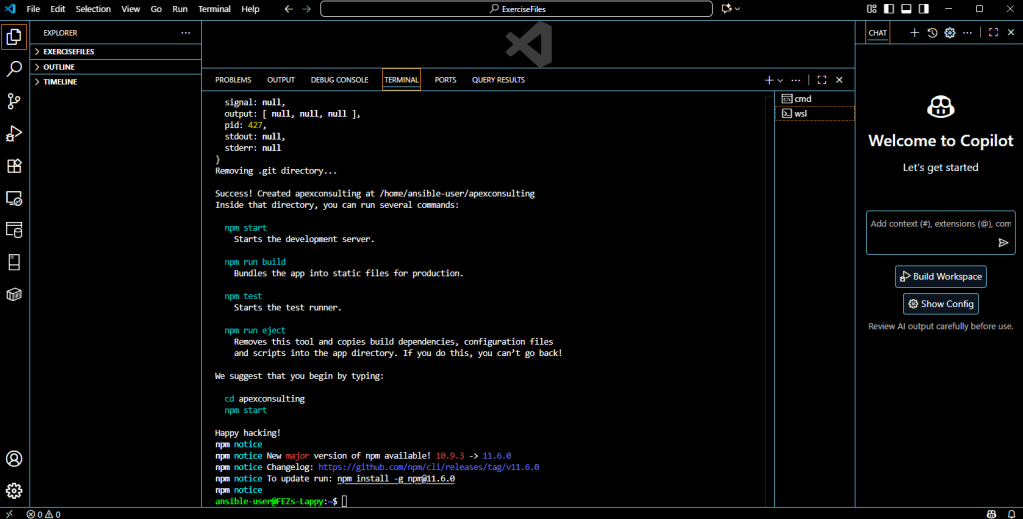
Terminal showing successful completion message
Project Structure Overview
Navigate to the project directory and explore the generated structure:
cd apexconsulting
ls -la
Open the project in Visual Studio Code to examine the structure:
Key Directories Explained
- node_modules: Contains all project dependencies
- public: Root HTML files and static assets
- src: Main JavaScript files and stylesheets
- package.json: Project configuration and build scripts

Browser running React default app at http://localhost:3000.
Phase 1 – Dockerizing a React Application
Containerizing a React application involves three essential steps: creating a Dockerfile, building the Docker image, and running the container.
Step 1: Creating the Dockerfile
The Dockerfile acts as a blueprint with each command representing a layer in the final image. Create a file named Dockerfile (without extension) in the root directory:
FROM Node 24.8.0

WORKDIR /app

COPY package.json ./
RUN npm install

COPY . .

EXPOSE 3000

CMD ["npm", "start"]
Dockerfile Breakdown
- FROM node:22.16: Base image from Docker Hub
- WORKDIR /app: Sets working directory to prevent file conflicts
- COPY package.json: Copies dependency list first for better caching
- RUN npm install: Downloads and installs dependencies
- COPY . .: Copies all application files (source = current directory, destination = /app)
- EXPOSE 3000: Declares the port the container will listen on
- CMD [“npm”, “start”]: Command executed when container starts
Step 2: Building the Docker Image
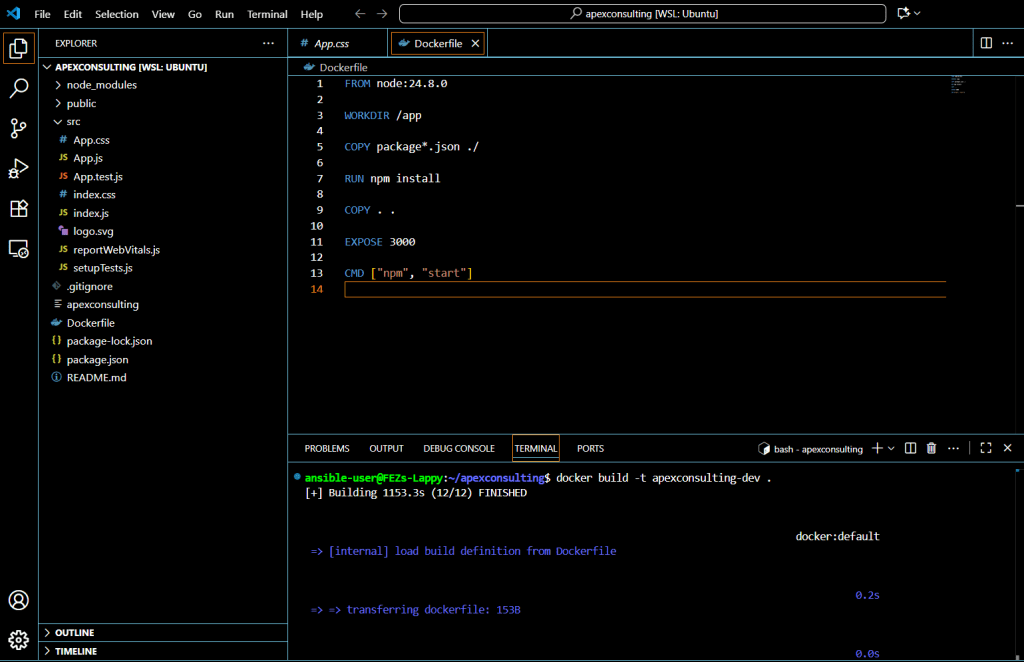
Build the image using the docker build command:
docker build -t apexconsulting-dev .The build process may take several minutes on first run as it downloads dependencies. The dot (.) specifies the Dockerfile location.
Check the created image:
docker image ls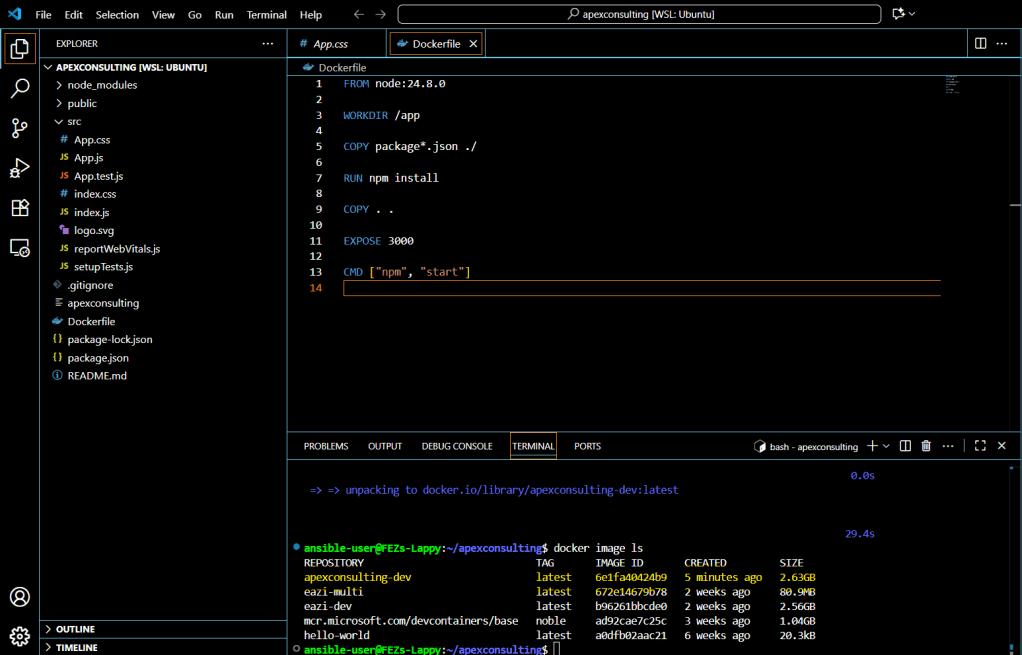
Note that the image size is approximately 2.63 GB due to node_modules dependencies and the Node.js runtime.
Step 3: Running the Docker Container
Start the container with port mapping:
bash
docker run -p 3000:3000 apexconsulting-dev

Testing the Application
Access your containerized React app through:
- Localhost:
http://localhost:3000 - Container IP:
http://[CONTAINER_IP]:3000
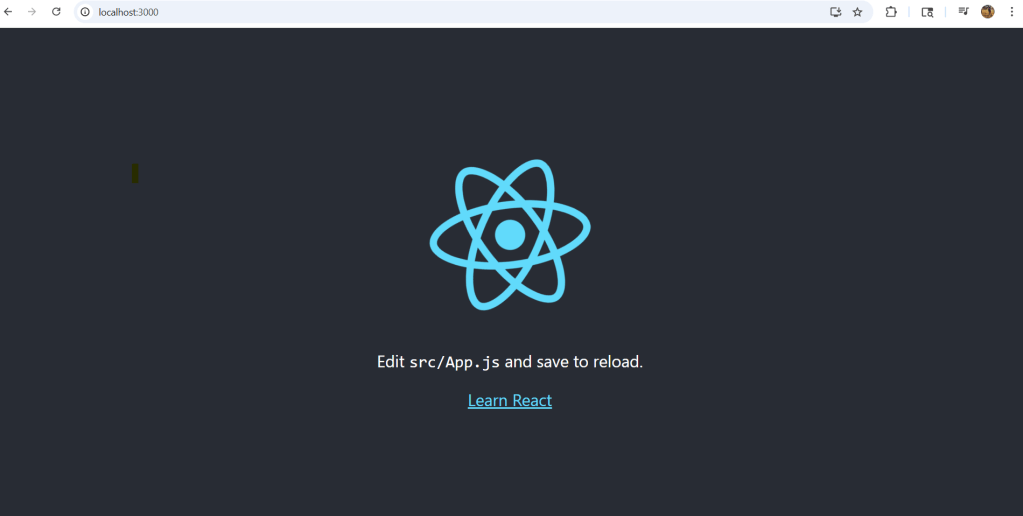
The Development Challenge
When you make code changes and refresh the browser, updates won’t appear automatically. This happens because the container contains a static copy of your code from build time.
Phase 2 – Hot Reload with Docker Volumes
Setting Up a Proper React Development Environment with Docker
Creating a local development environment that behaves consistently across different machines can be challenging. In this guide, we’ll improve a basic Docker setup to create a fully functional React development environment with hot reloading capabilities.
The Problem
When running a React app inside a Docker container, you’ll often encounter an issue where file changes on your host system aren’t detected inside the container. This means your app won’t automatically reload when you make code changes, forcing you to manually rebuild and restart the container for every minor modification—a frustrating and time-consuming workflow.
The Solution: Two Essential Steps
To solve this problem, we need to implement two key improvements:
Step 1: Configure the CHOKIDAR_USEPOLLING Environment Variable
The first step involves adding an environment variable called CHOKIDAR_USEPOLLING and setting its value to true.
CHOKIDAR is a file-watching library that react-scripts uses under the hood to detect file changes and trigger hot reloading during development. However, when running inside a Docker container—especially on Linux hosts with mounted volumes—native file system events often don’t work correctly across volume boundaries.
By setting CHOKIDAR_USEPOLLING=true, we force the chokidar library to use polling instead of relying on native file system events. This makes it reliably detect file updates even in volume-mounted directories.
Fun fact: “Chokidar” means “watchman” in Hindi, which perfectly describes its function.
You can set this environment variable directly in your Dockerfile using the ENV command:version: “3.9”
ENV CHOKIDAR_USEPOLLING=true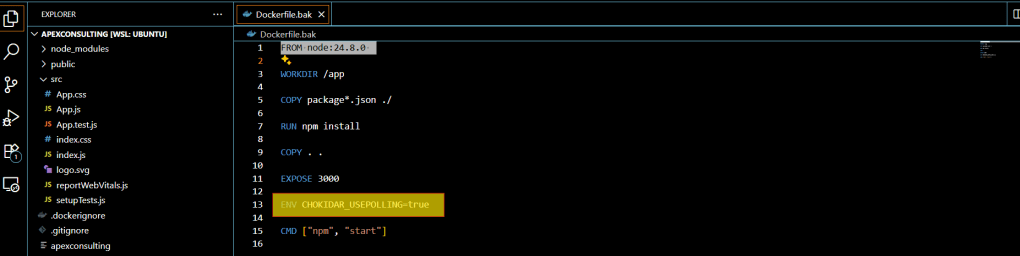
Step 2: Mount Your Local Code Using Docker Volumes
The second step involves using Docker volumes to share your local code directory with the container. This is accomplished using the -v flag when running your container.
Here’s the command structure:
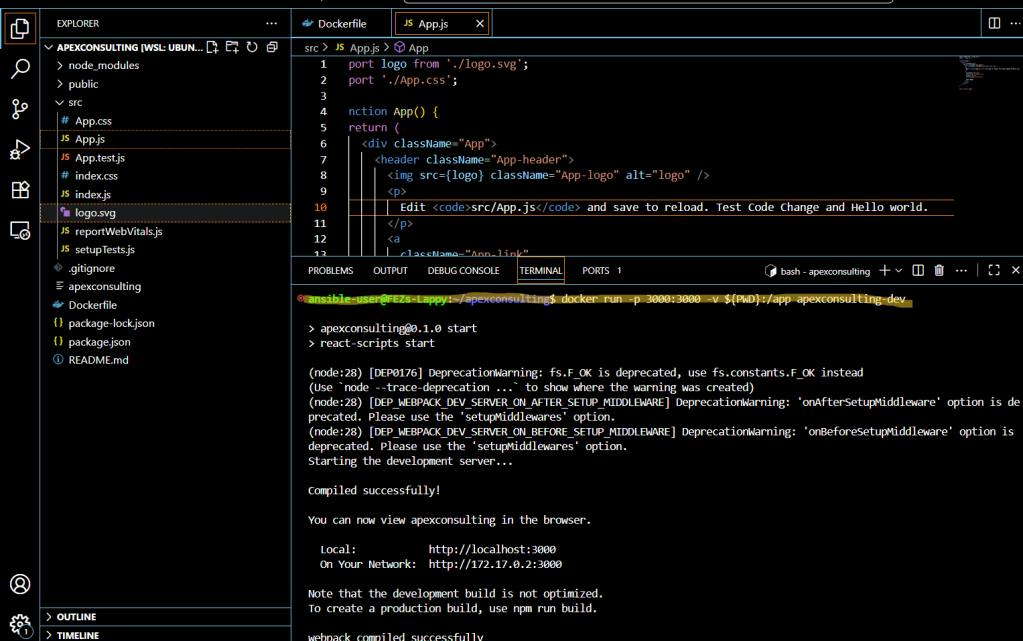
docker run -v $(pwd):/app [other-options] [image-name]In this command:
$(pwd)refers to your current directory on the host machine/appis the target directory inside the container- The volume mount creates a shared space between your host and container
Testing the Setup
1.Now let’s test the hot reloading functionality. Open your code editor and navigate to app.js
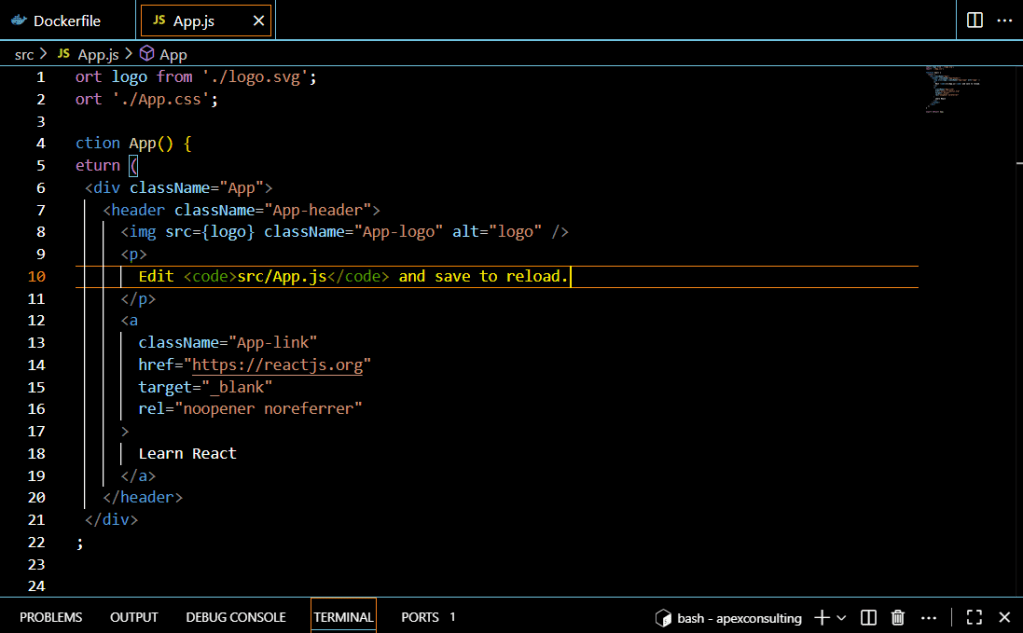
2. Make a change to the file—perhaps modify some text or styling in your component
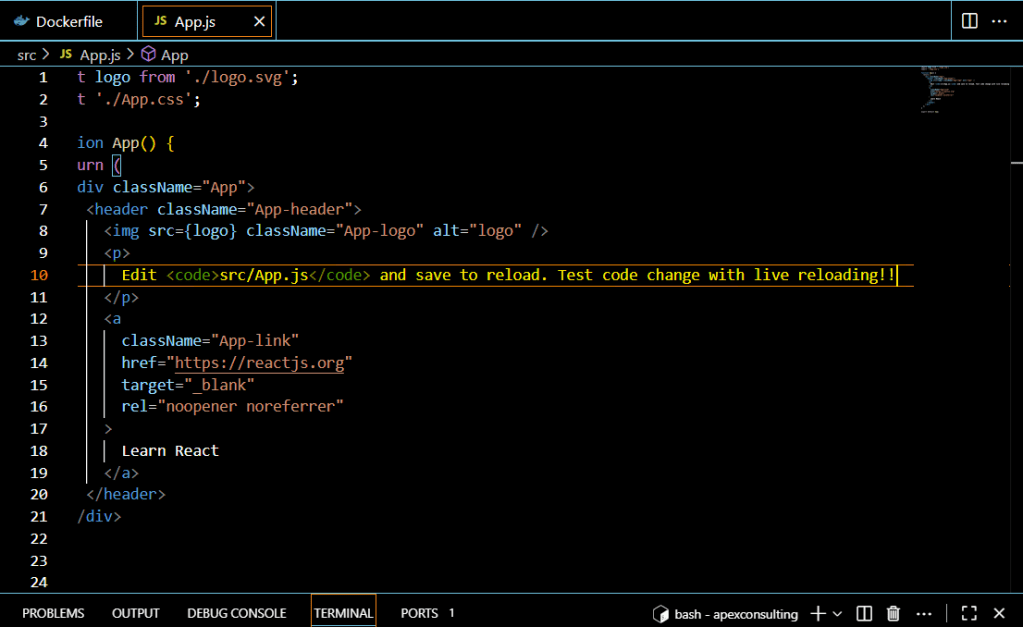
- Save the file and switch back to your browser. Watch as the changes appear automatically without any manual refresh!
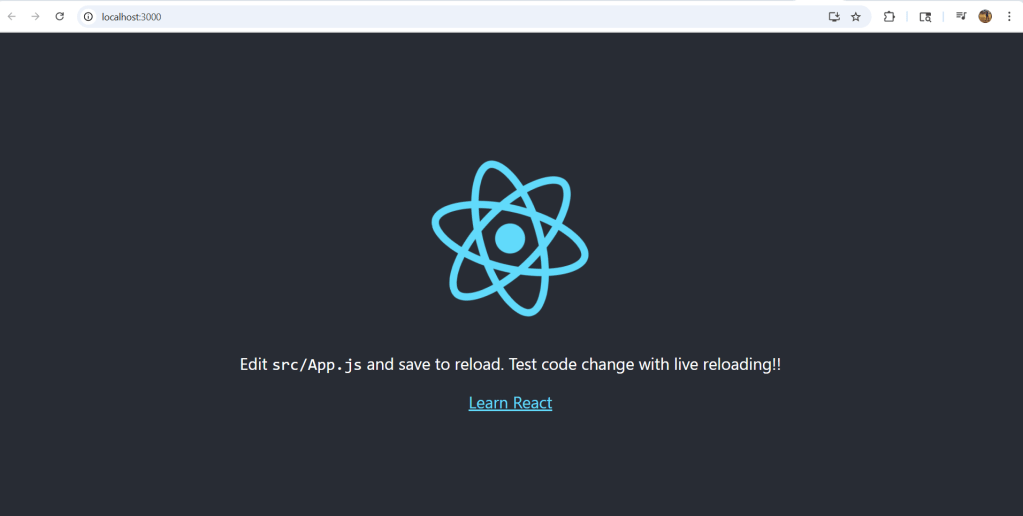
You should see your changes reflected instantly—no manual rebuilding required! This demonstrates that you now have a fully functional React development environment with hot reloading capabilities running inside Docker.
Important Consideration
While this setup is perfect for development, keep in mind that polling uses more CPU resources compared to event-based file watching. Therefore, this configuration should never be used in production environments. The polling approach is strictly for development convenience and should be disabled or removed when deploying your application.
This Docker-based development setup eliminates the friction of constant rebuilding while maintaining the consistency and isolation benefits of containerized development. Your development workflow will be significantly smoother, allowing you to focus on writing code rather than managing build processes.
Phase 3 – Optimizing React Docker Images with Multi-Stage Builds
We previously containerized a React application using a simple Dockerfile. However, if you’ve been following along, you might have noticed that our Docker image is quite large—around 2.63 GB.

In this section, we’ll explore multi-stage builds and learn how to dramatically reduce our image size while improving security and deployment performance.
Understanding Multi-Stage Builds: The Apartment Building Analogy
Think of building a Docker image like constructing an apartment building. During construction, you need cranes, scaffolding, tools, and construction workers. But once the apartment is complete, all these construction tools are removed, and residents only receive the final furnished apartment with essential features. It wouldn’t make sense to deliver the apartment with all the construction equipment still inside.
Multi-stage Dockerfiles work exactly the same way. They allow us to use all necessary build tools and dependencies during the construction phase, then create a final image that contains only what’s needed to run the application.
Why Our Current Image Is So Large
Let’s examine why our simple Dockerfile produces such a hefty 2.64 GB image:
Root Cause Analysis
- Full Node.js Base Image: We’re using the complete Node.js 24.8.0 image, which alone is approximately 1 GB when uncompressed.
- Unnecessary Dependencies: Our build includes all development dependencies, temporary files, log files, and the entire
node_modulesdirectory—much of which isn’t needed in production. - Missing Optimization: We’re not separating build-time dependencies from runtime requirements.
Alpine Images: A Lighter Alternative
Before diving into multi-stage builds, it’s worth noting that Node.js offers Alpine-based images that are significantly smaller—typically under 100 MB compared to the full 1 GB versions.
While Alpine images are a good improvement, multi-stage builds offer an even better solution by completely eliminating the Node.js runtime from our final image.
The Multi-Stage Build Advantage
Multi-stage builds provide several compelling benefits:
1. Dramatically Smaller Image Sizes
By using one stage to build the application and a minimal second stage to serve it, we eliminate:
- Development tools and build dependencies
- The Node.js runtime itself
- Temporary build files
- Development-only npm packages
2. Enhanced Security
Smaller images mean a reduced attack surface. The final image doesn’t include build tools, development dependencies, or unnecessary system components that could potentially be exploited.
3. Cleaner Separation of Concerns
The build process is clearly separated from the runtime environment, making the Dockerfile easier to understand and maintain.
4. Faster Deployments
Smaller images result in:
- Faster push/pull operations from Docker registries
- Reduced bandwidth usage
- Quicker container startup times
- More efficient CI/CD pipelines
The Two-Stage Strategy
Our multi-stage approach will consist of:
Stage 1: Build Stage
- Use a full Node.js image with all build tools
- Install dependencies (including dev dependencies)
- Build the React application
- Generate optimized production assets
Stage 2: Serve Stage
- Use a lightweight web server (like Nginx)
- Copy only the built assets from Stage 1
- Configure the web server to serve the React app
- Result: A minimal, production-ready image
Best Practices for Dependency Management
When implementing multi-stage builds, consider these dependency management strategies:
- Separate Development and Production Dependencies: Use
npm ci --only=productionor maintain separate package files - Use .dockerignore: Exclude unnecessary files like
node_modules, log files, and temporary directories from being copied into the build context - Layer Optimization: Structure your Dockerfile to maximize Docker’s layer caching benefits
Phase 4 – Implementing Multi-Stage Dockerfiles: From Theory to Practice
Now that we understand the benefits of multi-stage builds, let’s put theory into practice by creating a production-ready multi-stage Dockerfile. This implementation will dramatically reduce our image size while maintaining all the functionality we need.
Setting Up the Multi-Stage Dockerfile
Our new Dockerfile will consist of two distinct stages:
- Build Stage: Downloads dependencies and builds the React application
- Serve Stage: Uses a lightweight web server to serve only the built assets
Let’s start by backing up our previous Dockerfile and creating a new multi-stage version.
Stage 1: The Build Phase
The first stage handles all the heavy lifting required to build our React application:
Build stage
FROM node:24.8.0

WORKDIR /app

COPY package.json ./
RUN npm install

COPY . .
ENV CHOKIDAR_USEPOLLING=true

RUN npm run build
Here’s what each step accomplishes:
- FROM node: 22.4.80 AS builder: Pulls the full Node.js image and tags it as “builder” for later reference
- WORKDIR /app: Sets the working directory inside the container
- COPY package.json: Copies the dependency list to leverage Docker’s layer caching
- RUN npm install: Installs all project dependencies
- COPY . .: Copies all source code (src and public folders) into the container
- ENV CHOKIDAR_USEPOLLING=true: Enables live reloading (remember: not for production!)
- RUN npm run build: Generates optimized static files in the build directory
Stage 2: The Serve Stage
The second stage creates our lean production image:
FROM nginx:alpine

COPY --from=builder /app/build /usr/share/nginx/html

EXPOSE 80

CMD ["nginx", "-g", "daemon off;"]
This is where the magic happens:
- FROM nginx:alpine: Uses a minimal Alpine Linux-based Nginx image
- COPY –from=builder: Copies only the built assets from the builder stage
- EXPOSE 80: Declares that the container listens on port 80
- CMD: Starts Nginx in the foreground
The final image contains only static assets and Nginx—no Node.js, no source code, no development dependencies.
Building and Running the Multi-Stage Image
Let’s build our new multi-stage Dockerfile
docker build -t apexconsulting-multi .
Now let’s run our new container:
docker run -p 80:80 apexconsulting-multi
The Nginx server is now up and running, serving our React application on port 80.
Deep Dive: Understanding Image Layers
To truly understand how our multi-stage build works, let’s examine the image layer by layer using Docker’s history command:
docker image history apexconsulting-multi

You’ll notice one command that generates approximately 42.4MB, but the output is truncated. To see the full details, let’s enhance the command:
docker image history –format “table {{.CreatedBy}}\t{{.Size}}” –no-trunc apex-multi

Now we can see the complete multi-line command that generates the 40MB layer. This command downloads the Nginx package using curl, extracts it with tar xzvf, and installs Nginx along with its dynamic modules inside the Alpine Linux environment.
This detailed view is extremely valuable for:
- Understanding: See exactly what contributes to your image size
- Auditing: Verify what’s included in your production image
- Optimizing: Identify opportunities to reduce image size further
The Results
Our multi-stage approach has delivered exactly what we promised:
- Smaller image size: Dramatically reduced from our original 2.64GB
- Enhanced security: No development tools or source code in production
- Production-ready: Served by a robust, lightweight web server
- Clean separation: Build concerns separated from runtime concerns
This structure ensures you get a lean, secure, and production-ready Docker image that’s optimized for deployment and scalability.
Phase 5 -Making Your React App Production-Ready
Production-Ready Requirements
A production-ready React application needs:
- Performance: Optimized builds, minified assets, no dev tools or source code in production images
- Reliability: Proper error handling and graceful failure recovery
- Configuration: Environment variables for API keys and endpoints, no hard-coded values
Multi-stage Dockerfiles handle performance optimization, but we need to address reliability and configuration management.
Web Server Selection Criteria
When choosing a web server for static React apps, consider:
- Scalability: Handle traffic loads and growth (Nginx excels here)
- Flexibility: Custom configuration support for complex routing and caching
- Security: Proper HTTP headers, SSL/HTTPS support, secure file serving
- Docker Integration: Small image sizes, multi-stage build support
The SPA Routing Problem
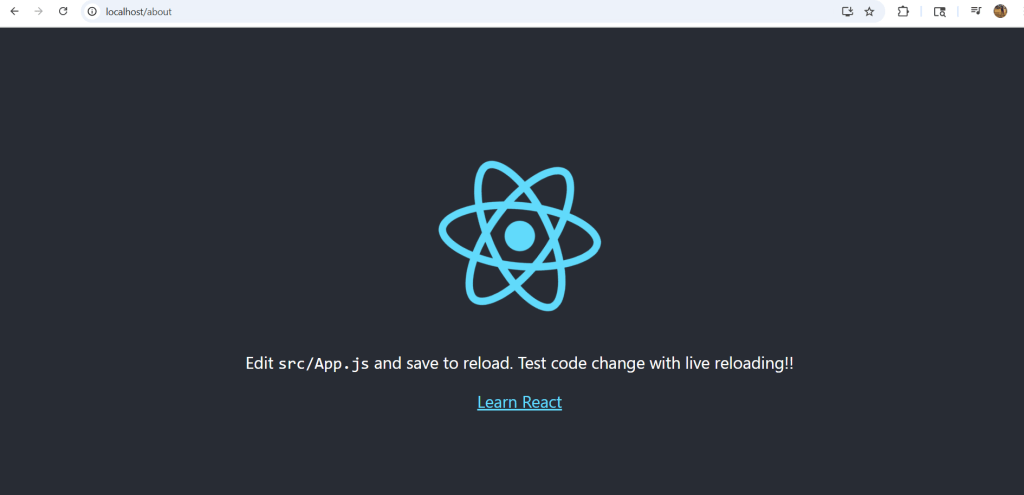
Our current Nginx setup has an issue: navigating to routes like /about shows Nginx’s 404 page instead of letting React Router handle the routing. This happens because Nginx looks for physical files and serves its own 404 when they don’t exist.
Creating the Nginx Configuration
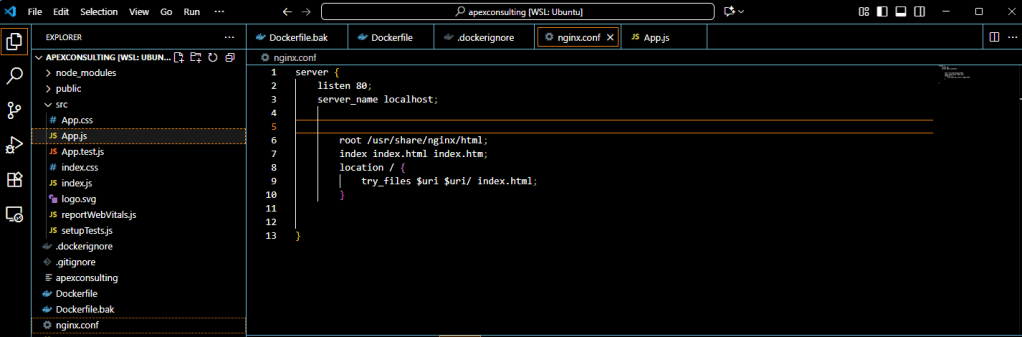
The nginx.conf file acts as the brain of your Nginx server, controlling how it handles requests, serves files, and manages routing for your React application.
Create a new nginx.conf file in your project root:
server {
    listen 80;
    server_name localhost;
    root /usr/share/nginx/html;
    index index.html;

    location / {
        try_files $uri $uri/ /index.html;
    }
}
Key Configuration Explained
- listen 80: Routes incoming HTTP traffic through port 80
- server_name localhost: Defines the domain (use your production domain in real deployments)
- root: Points to where Docker copied the React build output
- try_files $uri $uri/ /index.html: The critical line that enables SPA routing
The try_files directive works by:
- Looking for a file matching the requested path (
$uri) - If not found, serving
index.htmlinstead - This allows React Router to handle client-side routing
Updating the Dockerfile
Modify your multi-stage Dockerfile to include the custom Nginx configuration:
# Serve stage
FROM nginx:alpine

# Remove default config and copy custom config
RUN rm /etc/nginx/conf.d/default.conf
COPY nginx.conf /etc/nginx/conf.d/

COPY --from=builder /app/build /usr/share/nginx/html
EXPOSE 80
CMD ["nginx", "-g", "daemon off;"]
Building and Testing
Build the updated image:
docker build -t globo-multi .
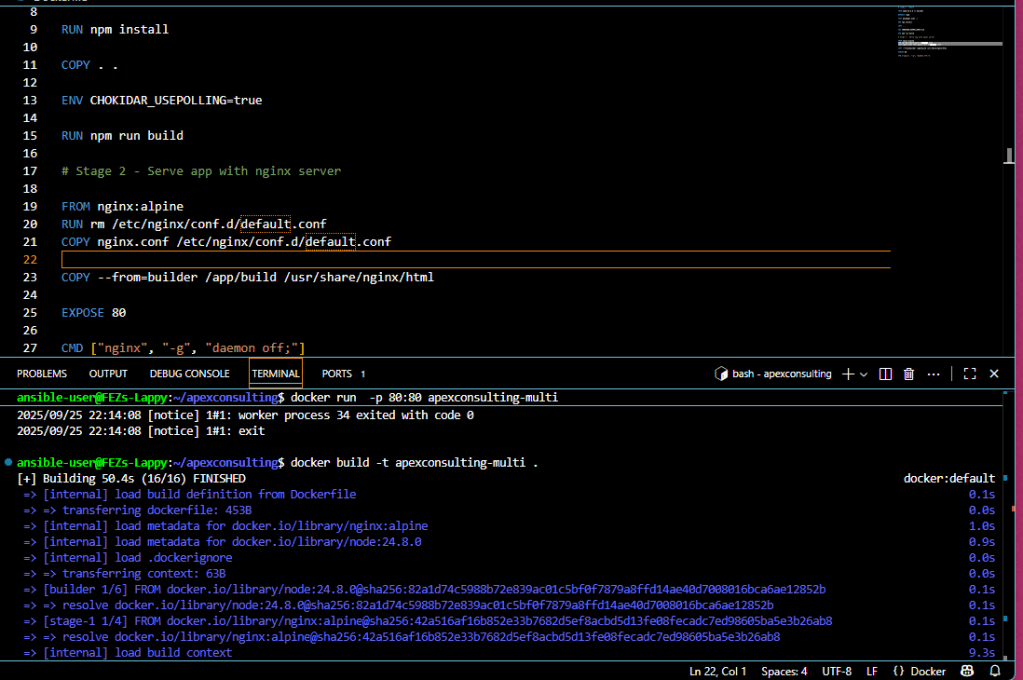
Run the container:
docker run -p 80:80 globo-multi
Test the routing fix by navigating to localhost/about:
Environment Variables
Add environment variables to your Dockerfile:
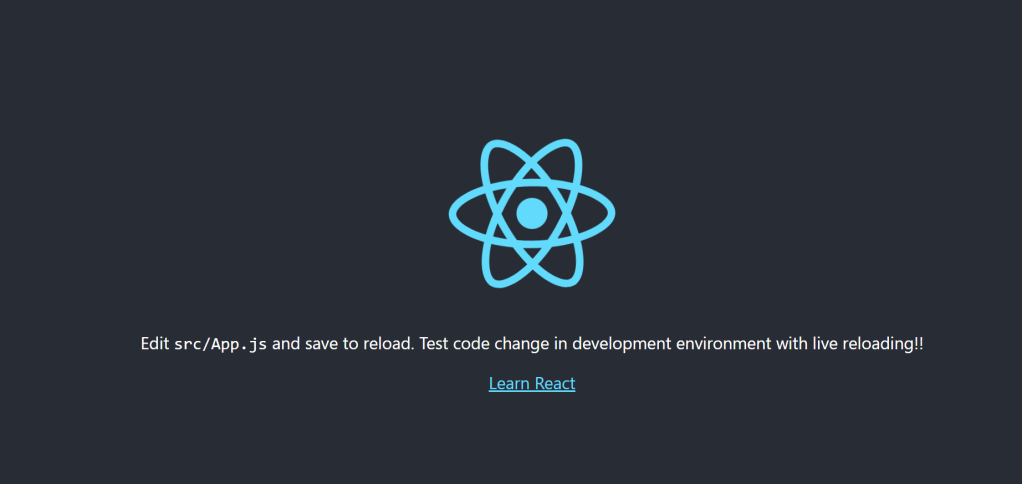
ENV REACT_APP_ENVIRONMENT=development
Note: Use the REACT_APP_ prefix for Create React App compatibility.
Access the variable in your React code:
const env = process.env.REACT_APP_ENVIRONMENT;
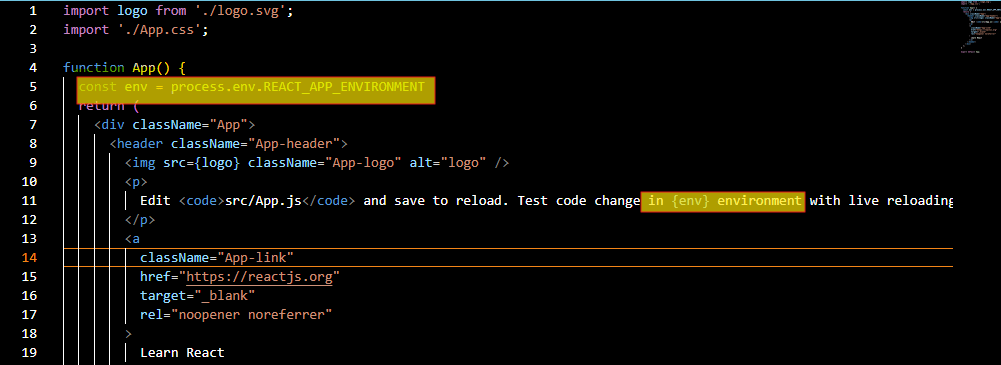
After rebuilding and running, the environment value displays in the browser:
Container Management Best Practices
Using Named Containers
Instead of managing container IDs:
docker run -d --name react-app -p 80:80 globo-multi
Detached Mode
Use the -d flag to run containers in the background:
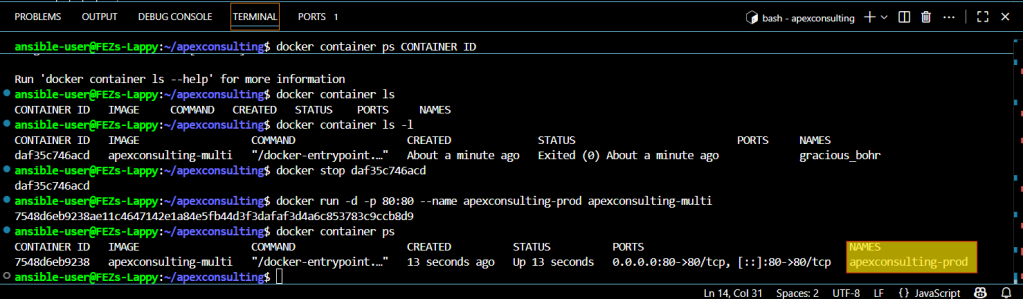
Easy Container Control
Stop containers by name:
docker stop react-app
This approach provides cleaner container management and reduces errors from copying container IDs.
 Faaez Nafiu's Cloud Projects
Leave a comment